How to Use a GPS Camera: A Practical Guide for Field Work
A photo shows what happened. A GPS camera adds where and when, at the moment you press the shutter.
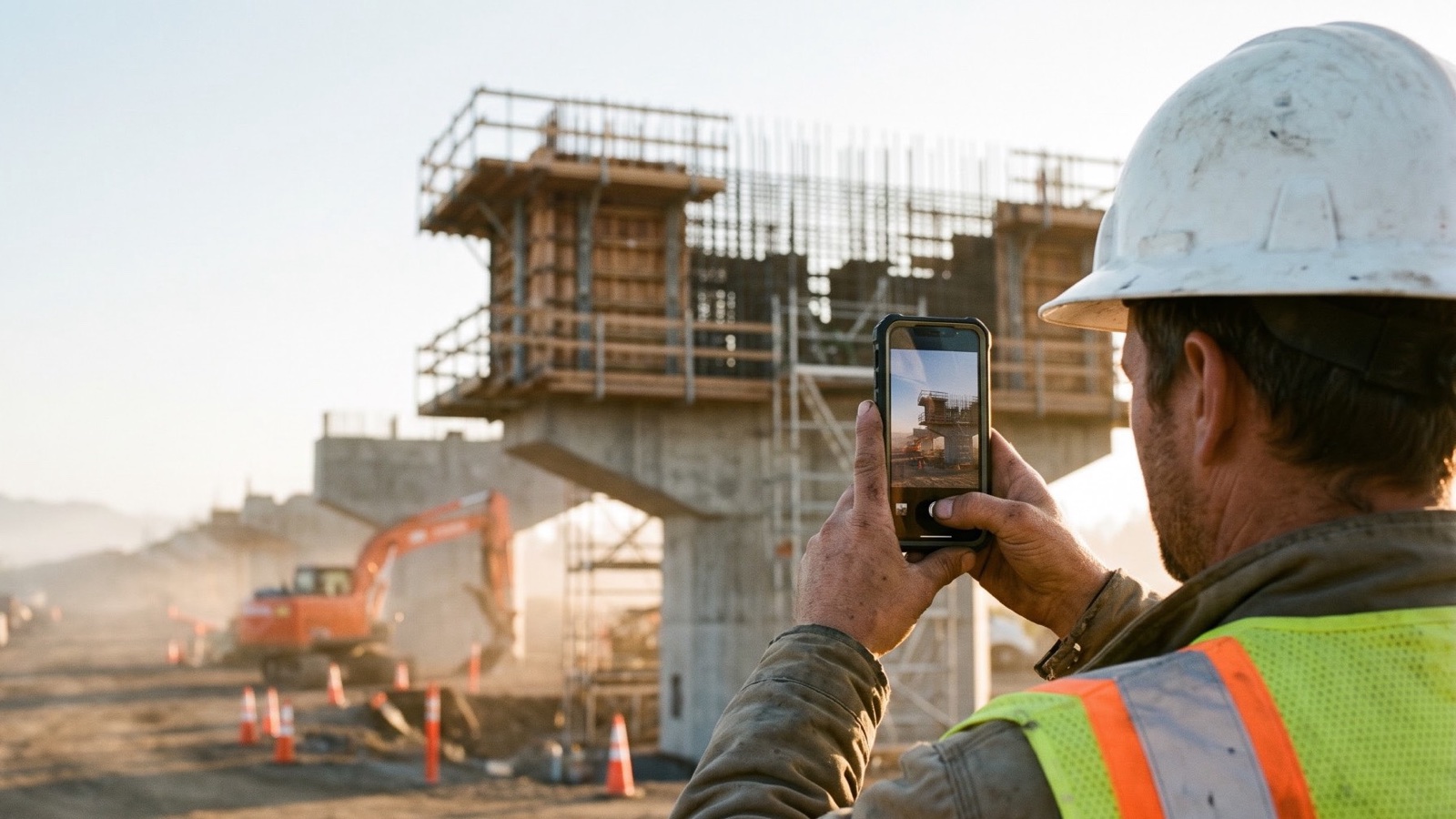
A GPS camera puts the place and time on a photo as you take it, usually as a stamp with the address, GPS coordinates, date and time. It turns "here is the wall" into "here is the wall, at this address, at 9:41 on Tuesday morning."
You don't need special hardware. Today a GPS camera is an app on the phone you already carry. This guide covers what one does, how to use it well, where it earns its place, and what it can't do. We make PinCam, so our examples use it, and we say where it falls short.
What is a GPS camera?
A GPS camera is a camera app that records your location and the time on every photo. It can do that in two ways, and the difference matters:
- Geotagged photos keep the location inside the file, as hidden EXIF data. Your phone's own camera can do this. Nobody sees it unless they open the file's details, and it often disappears on the way: messaging apps and social networks commonly strip it.
- A GPS stamp draws the location and time onto the picture. Anyone can read it, and it stays there in a PDF report, an email or a printout.
A good GPS camera gives you both. PinCam draws the stamp onto the full-resolution photo and also writes the location, date, time and compass direction into its EXIF data.
How to use a GPS camera in five steps
- Allow location access. "While Using the App" is all a GPS camera needs. PinCam uses your location only while the camera is open on screen.
- Check your GPS signal. Under open sky you'll usually get a good fix. Indoors, under concrete or between tall buildings, the position can drift. If your stamp shows GPS accuracy, read it: ±3 m is far better than ±30 m. PinCam stays quiet when GPS is fine and shows a small notice when it's still searching or the signal is weak. It never blocks the shutter.
- Choose what goes on the stamp. Pick what your reader needs: address, coordinates, a map, altitude, GPS accuracy, compass heading, date, time and temperature. Add a short note such as "Job #1042, Block C" so the photo explains itself.
- Frame the place, not just the problem. Take a wide shot with something recognisable in it, then the close-ups. A crack on its own could be anywhere.
- Save and share. PinCam keeps a copy in its own gallery, sorted by saved site, city and area, and puts another in a PinCam album in your phone's photos. Share the stamped image and the details go with it.
Where a GPS camera is most useful
Construction site photo documentation
Daily progress is the obvious use. The more valuable one is work that's about to disappear: rebar before the pour, pipes before the trench is filled, waterproofing before it's covered. Once it's buried, your photo is the only view left.
This is what we built PinCam's saved locations for. Save a site once with its own name and address lines, pick it when you arrive, and its photos go into their own gallery folder. One saved location is free, and more come with PinCam Pro.
Site inspections and surveys
A site visit photo is more useful when it says which way you were facing. PinCam's stamp can show a true north compass heading, altitude and GPS accuracy, with coordinates in decimal or degrees, minutes and seconds. Video is useful here too, for a walkthrough of a whole site.
Property condition and repairs
Move-in and move-out reports, before and after repairs, and storm damage all rely on showing what a place looked like on a given day. One catch: a stamp can hide the very thing you're recording. PinCam can put the stamp in a strip below the photo instead, so nothing is covered, and that's free.
Field service and proof of work
For technicians, cleaners, landscapers and installers, an arrival photo and a finished photo answer most questions before they're asked. Put the job number in the note. With PinCam Pro, your company name and logo go on the stamp too.
Grants, subsidies and public programmes
Some funders ask for geotagged photos to confirm that work was done. Read their rules before you start, because the details differ. The Welsh Government's guidance for rural grants, for example, checks the location and time stored in the file, asks for a clear reference point such as a large tree or building, and tells applicants to use the phone's default Camera app because third-party apps may not record location correctly. A visible stamp doesn't help you there.
Other programmes want the details visible on the picture, which a phone's built-in camera won't do. Whichever applies, send one test photo before you rely on it.
Farms, land and remote field work
Fields, forests and pipelines often have no signal, but GPS doesn't need mobile data. PinCam still stamps those photos with coordinates, date and time. The map appears only if its tiles are already cached, and weather is left out. Once you're back online, the gallery looks up the address and files the photo by city, while the stamp keeps its coordinates.
Travel and everyday memories
Not every use is work. A stamp with the place, date and weather makes a good record of a trip, and a gallery sorted by city and area saves you from scrolling to find it.
Habits that make stamped photos more useful
- Keep your phone's time automatic. A stamp is only as good as the clock behind it, so leave date and time set automatically.
- Shoot wide, then close. Show the street number, a sign or a landmark first, so each close-up has context.
- Keep the originals when it matters. PinCam's Save originals option also keeps an unstamped copy next to the stamped one. It comes with Pro, or you can watch an ad to use it for two hours.
- Name files so they can be found. Build file names from the date, time, city and area, or your own prefix. This one also comes with Pro or a two-hour ad unlock.
- Send a file when the hidden data matters. Normal photo sharing in messaging apps usually removes EXIF data. Email or a shared file link is a safer way to keep it.
- Remember how video stamps work. The stamp shows the details from the moment you started recording and stays the same for the whole clip. On a long walkthrough, record shorter clips.
What a GPS camera can't prove
A stamp records what the phone reported at that moment. That's useful, but it isn't a guarantee. Phone locations can be faked and clocks can be changed, and PinCam doesn't detect either, so don't treat a stamped photo as tamper-proof. GPS also shows where the camera was, not that the work was done to specification.
If a photo may end up in a contract dispute, an insurance claim or a legal case, ask whoever will rely on it what they accept, and keep it with your notes, logs and invoices.
Common questions
How do I add location to photos on iPhone?
To save hidden location data, go to Settings, Privacy & Security, Location Services, Camera, and choose While Using the App. To show the location on the picture itself, use a GPS camera app.
What is the difference between a GPS camera and a timestamp camera?
A timestamp camera puts the date and time on a photo. A GPS camera adds where it was taken. Most apps do both now, so a GPS camera with time stamp is the usual choice for field work.
Does a GPS camera work offline?
Yes. Offline photos in PinCam are still stamped with coordinates, date and time. See remote field work above for what changes.
Can I add a GPS stamp to an old photo?
Not with PinCam. It stamps photos and videos as you take them, using the location and time at that moment.
The best GPS camera apps for iPhone

PinCam: GPS Camera & Timestamp
Download on theApp Store


Start with one site
The best way to learn is to use it on your next site visit. Set up your stamp, add a note, take a wide shot and a close-up, and see how it reads to someone who wasn't there.
Download on theApp Store